
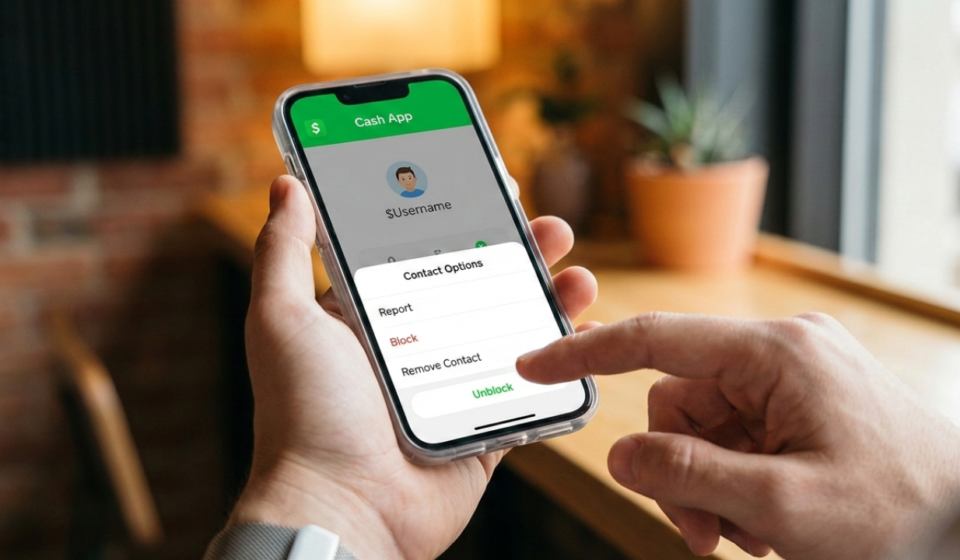

Cash App has become a cornerstone of modern digital finance, allowing millions of users to send and receive money with a simple tap. However, with the convenience of instant transactions comes the need for robust privacy controls. Whether you accidentally blocked a friend, resolved a past dispute, or want to give a merchant a second chance, knowing how to unblock someone on Cash App is essential for maintaining your digital financial circle.
In this comprehensive 2026 guide, we will walk you through the updated steps to restore your connections, explain what happens when you hit that unblock button, and provide troubleshooting tips for the most common issues.
Table of Contents
Why You Might Need to Unblock Someone on Cash App
Before diving into the “how,” it is helpful to understand the “why.” Digital relationships change, and Cash App’s interface has evolved to reflect that. You might find yourself needing to unblock a user for several reasons:
- Accidental Blocks: With the fast-paced nature of mobile apps, it is surprisingly easy to tap the wrong button while scrolling through your activity feed.
- Resolved Disputes: Perhaps a friend owed you money, and the tension led to a temporary block. Once the air is cleared, unblocking them is the only way to resume transactions.
- Business Reconnections: If you use Cash App for your small business, you may have blocked a client during a payment misunderstanding. Unblocking them allows you to receive future legitimate payments.
- System Errors: Occasionally, users report that contacts appear blocked due to syncing errors between their phone’s contact list and the app.
Step-by-Step Guide: How to Unblock Someone via Activity Feed
The most common method to unblock a user is through your transaction history. Since Cash App does not currently feature a dedicated “Block List” menu in the main settings for all users, your activity feed is the most reliable path.
1. Launch the Cash App
Open the Cash App on your iPhone or Android device. Ensure you are logged into the correct account and that your app is updated to the latest version, so the interface matches these steps.
2. Access the Activity Tab
On the home screen, look for the Clock Icon located in the bottom-right corner. This is your Activity Tab, where you can view all your past payments, requests, and pending transactions.
3. Find the Blocked User
Scroll through your history to find a past transaction involving the person you want to unblock. You can also use the search bar at the top of the activity screen to type in their name or $Cashtag.
4. Open Their Profile
Tap on the transaction or the user’s name. This will open a mini-profile or a transaction detail page. In the top-right corner, you will usually see three dots (…). Tap those dots to view their full Profile.
5. Select Unblock
Once you are on their profile page, scroll to the very bottom. You will see a button labeled Unblock. Tap it. Unlike the blocking process, the app may not always prompt for a second confirmation, so ensure you tap the correct name.
How to Unblock Someone via the Search Function
If you have never had a transaction with the person or you have deleted your activity history, you can still unblock them using the search tool.
1. Tap the Search Icon
From the Cash App home screen, tap the Magnifying Glass or the “New” payment button (the $ sign) to bring up the search field.
2. Enter Their Details
Type in the person’s name, $Cashtag, phone number, or email address. Even if they are blocked, their Profile should appear in the search results.
3. Navigate to the Profile
Tap on their account to open their Profile. Scroll to the bottom and select the Unblock option.
What Happens When You Unblock Someone?
Understanding the technical side of unblocking is crucial for your privacy and security. When you unblock a user on Cash App in 2026, several things happen immediately:
- Payment Ability Restored: The user can now send you money and requests. Any previous restrictions on their ability to find your $Cashtag will be lifted.
- No Notification Sent: Cash App values privacy. The person you unblocked will not receive a notification saying “User X has unblocked you.” However, they might realize it if they attempt to send a payment and it suddenly goes through.
- Transaction History Remains: Unblocking does not delete or “reset” your history. All past interactions will remain visible in your activity feed exactly as they were.
- Request Permissions: If you have global privacy settings that limit who can send you requests, the unblocked user will still be subject to those general rules.

Troubleshooting: Why Can’t I Unblock Someone?
Sometimes the process isn’t as smooth as we’d like. If you are struggling to find the unblock button, consider these common 2026 fixes:
The Profile Won’t Load
If a profile appears blank or gives an “Error 400” when you try to open it, the other user may have deleted their account or blocked you. In “mutual block” situations, you may need to contact Cash App support to resolve the visibility issue.
The App is Outdated
Cash App frequently updates its security protocols. If you are using a version of the app from 2024 or 2025, the buttons might have moved. Visit the Apple App Store or Google Play Store to ensure you are on the current version.
Cached Data Issues
On Android devices, the app sometimes “remembers” a block even after you’ve toggled it off. Go to your phone’s Settings > Apps > Cash App > Storage and select Clear Cache. Restart the app and try the unblocking process again.
Pro-Tip: Alternatives to Blocking
If you find yourself frequently blocking and unblocking people to avoid spam, there is a more efficient way to manage your Cash App privacy:
Instead of a hard block, go to your Profile Icon > Privacy & Security. Here, you can toggle off Incoming Requests. This allows you to keep your account open for friends to send money while preventing random strangers or “request-spammers” from cluttering your notifications. You can also turn off the “Allow Others to Find Me” toggle to make your $Cashtag private.
Staying Safe After Unblocking
When you unblock someone, you are essentially reopening a door to your digital wallet. In 2026, scam tactics have become more sophisticated. If you are unblocking a merchant or a person you don’t know well, remember:
- Verify the $Cashtag: Ensure it belongs to the correct person and is not a “look-alike” account.
- Avoid “Cash Flipping”: If the unblocked person immediately sends you a deal that sounds too good to be true, block them again.
- Use Security Locks: Always keep your “Security Lock” (PIN or TouchID/FaceID) enabled for every payment.
Conclusion
Managing your contacts on Cash App is a vital part of digital financial literacy. Whether it was a mistake or a change of heart, unblocking someone is straightforward and takes less than a minute. By following the steps in the Activity Feed or using the Search function, you can restore your connections and keep your transactions flowing smoothly.
Always remember that your financial safety comes first. If you unblock someone and they immediately begin harassing you or sending suspicious requests, do not hesitate to use the Report and Block features again. Cash App is designed to give you total control over who can interact with your money.
Also Read: The Ultimate Guide to Kenna Kennor: Career, Impact, and Legacy